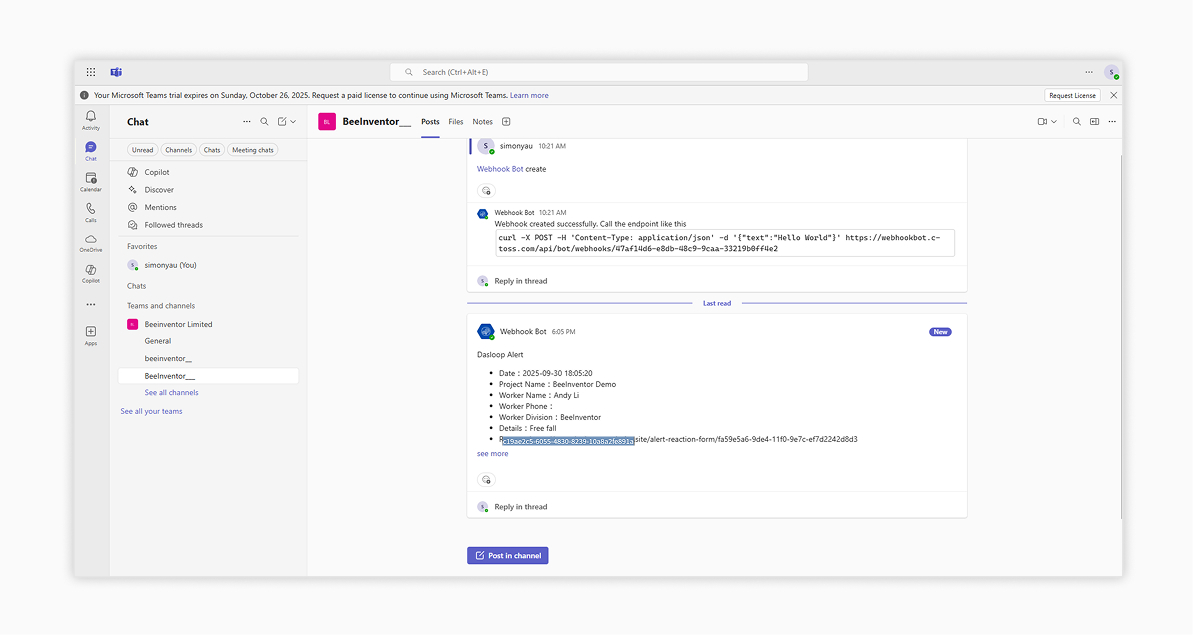
Microsoft Teams Configuration Steps
1. Please download and install Teams from the official Microsoft website

2. Log in your Teams business account
- First, log in your Teams business account
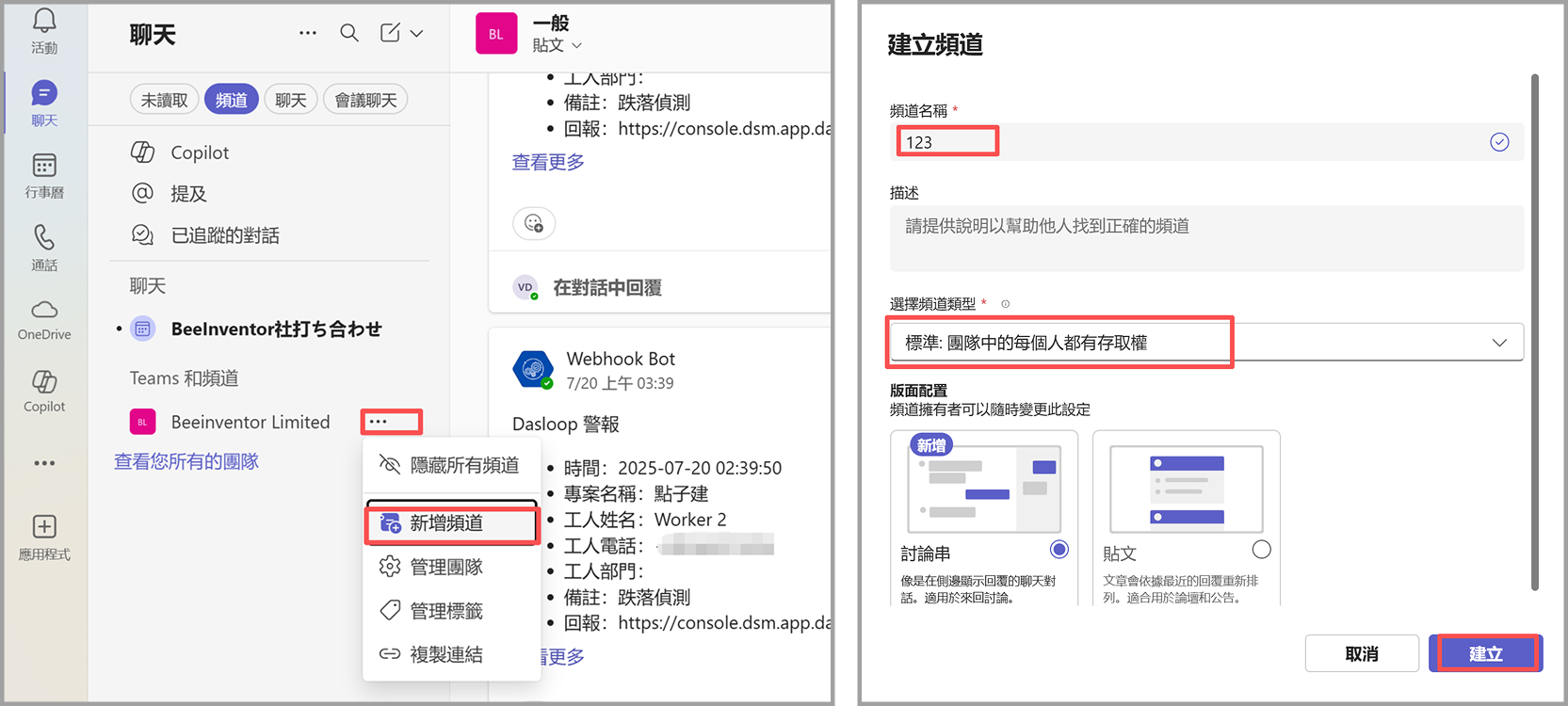
3. Create a channel
- Follow the steps in the image below to create your own channel within the BeeInventor channel
4. Set up the Webhook Bot
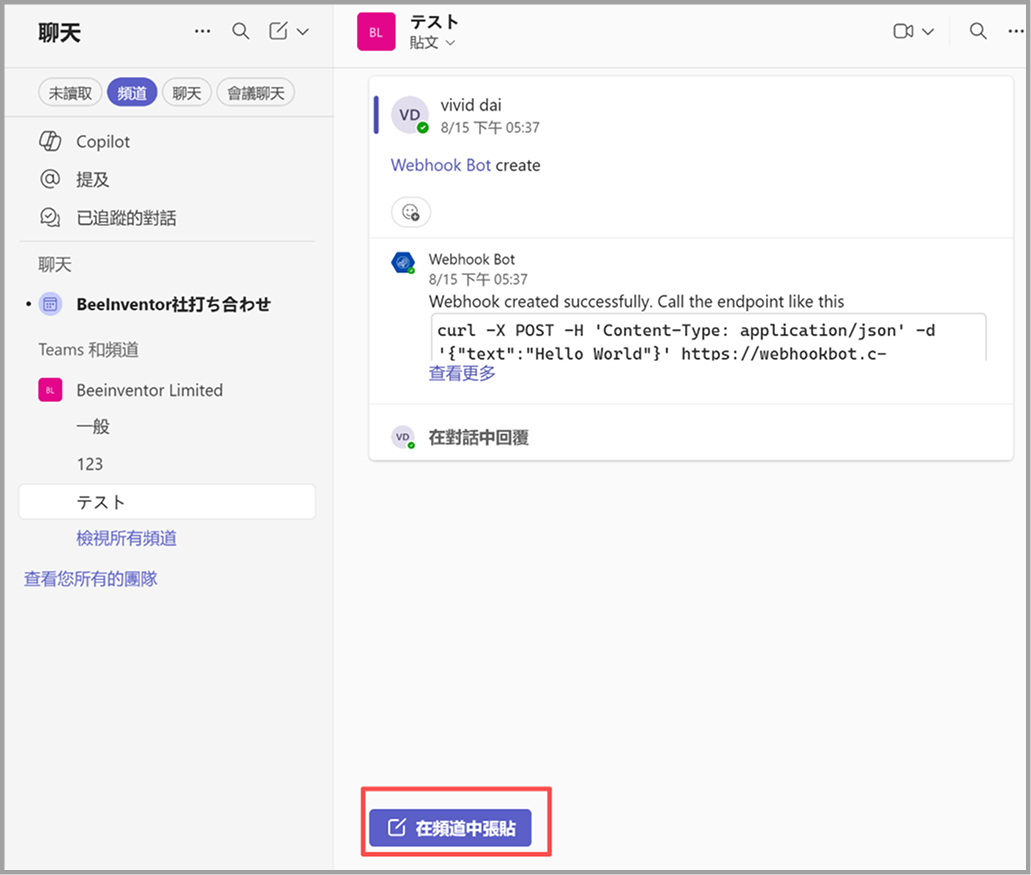
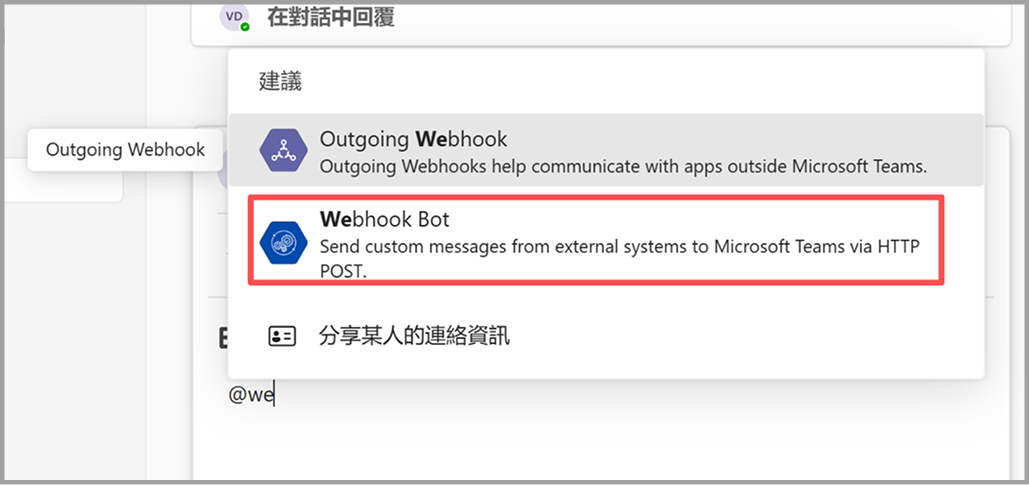
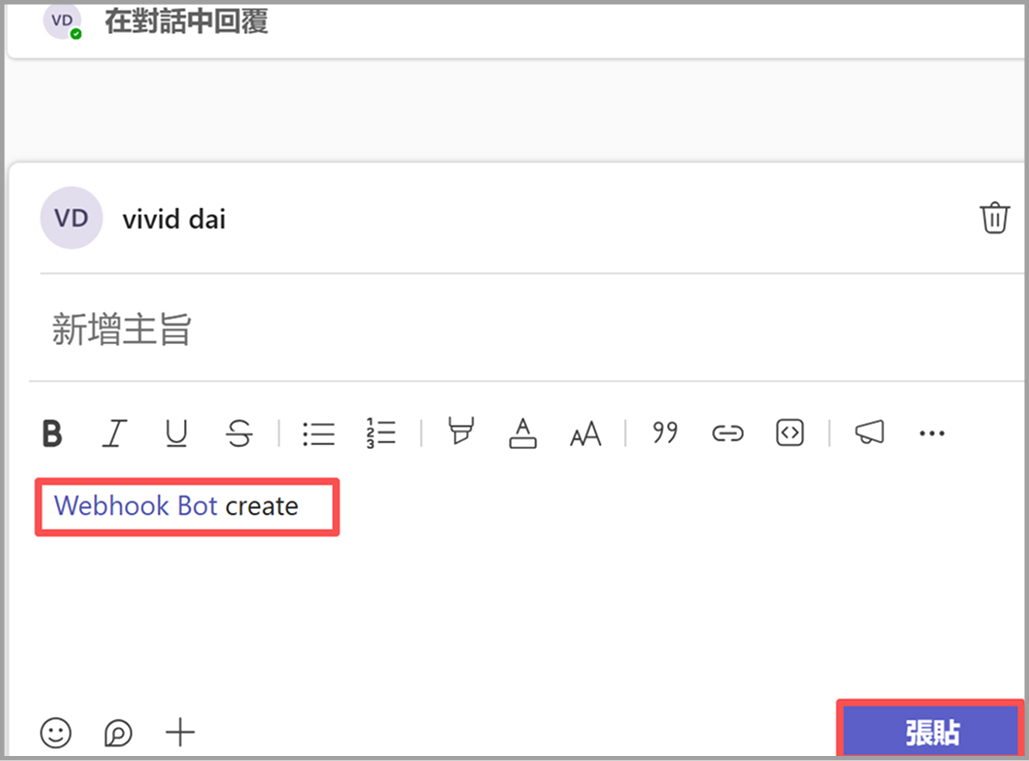
- In the channel you created, send a message and enter the following format:
- @Webhook Bot <space> create
- Then click "send"
5. Obtain the code
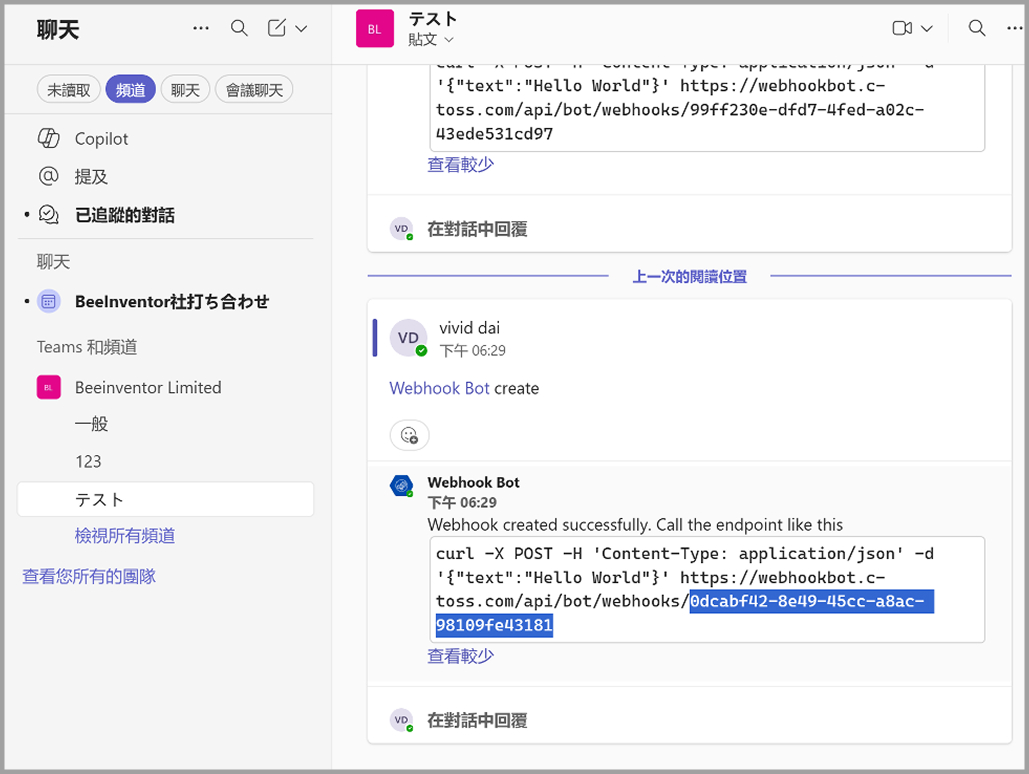
- After sending, the system will display a code string. Please copy the last combination of numbers and letters.
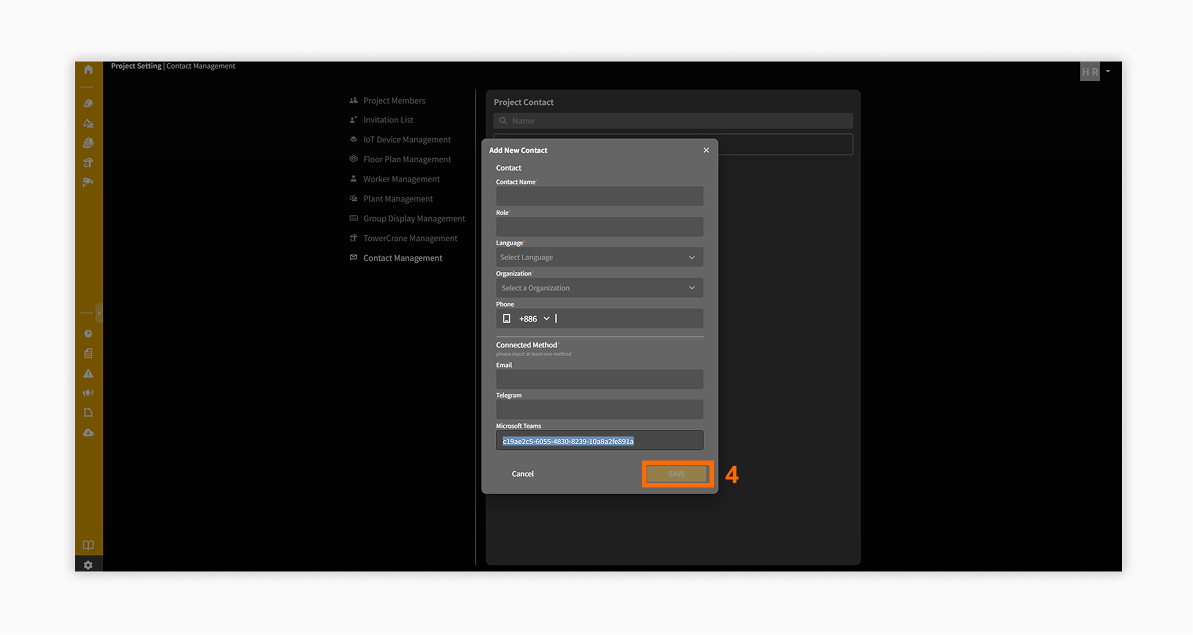
6. Configure on the DasIOT platform
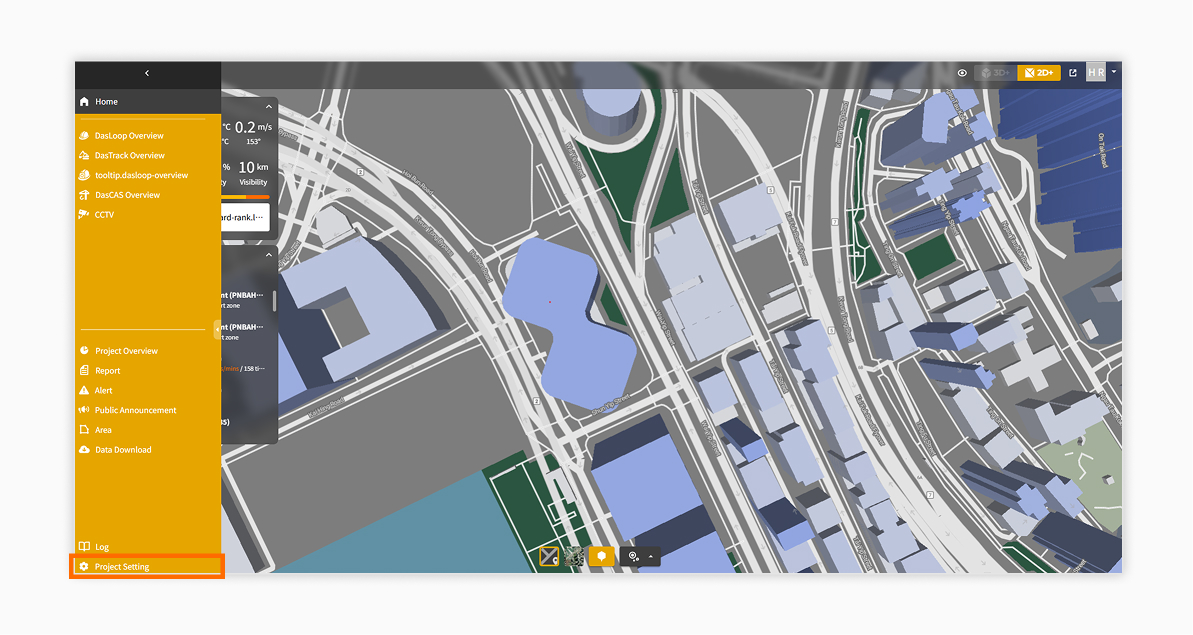
- Click on "Project Settings"
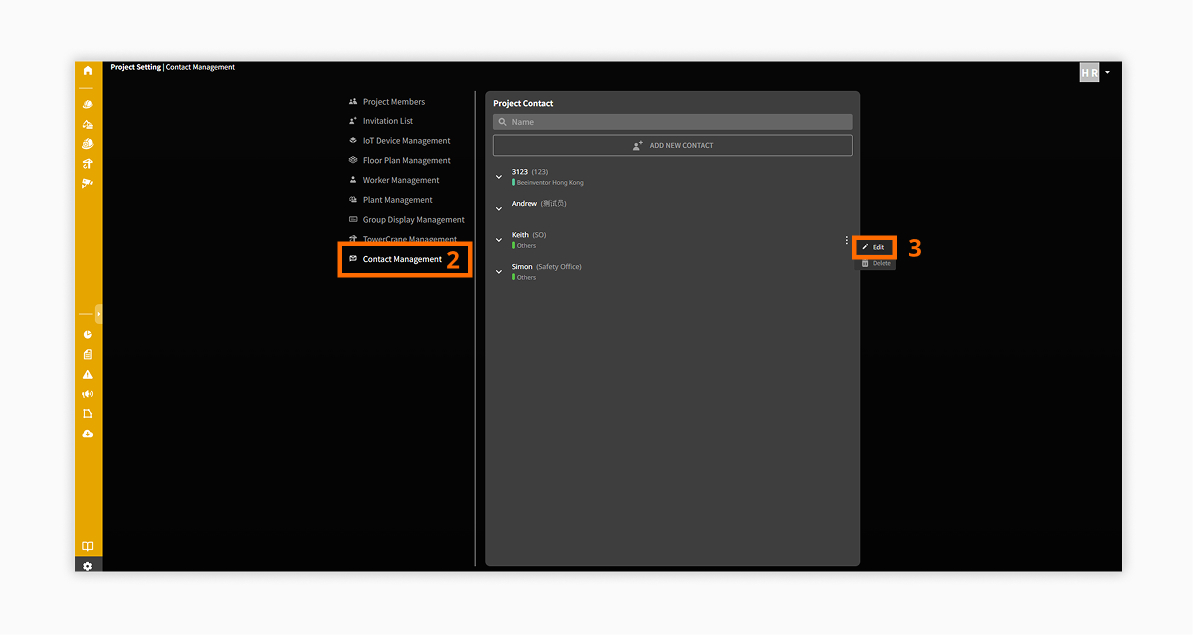
- Open the "Contact Management" page on the DasIOT platform.
Paste the copied code into the corresponding contact’s settings page.
7. Confirm alert notifications
- Once the setup is complete, when an alert occurs on the platform, you will receive the alert notification on Teams