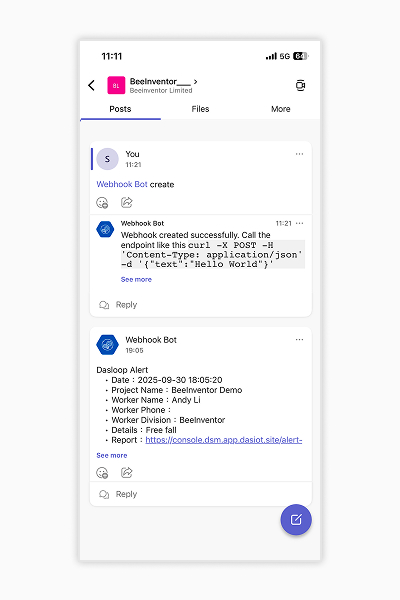
Microsoft Teams Configuration Steps
1. Please download and install Teams from the Google Play Store / Apple App Store

2. Log in your Teams business account
- First, log in your Teams business account.
3. Create a channel
- Select "Teams" in the navigation bar below, click the "⋯" on the right side of the team list, choose "View channels"
- At the bottom, and after entering the channel, click the "+" in the upper right corner.
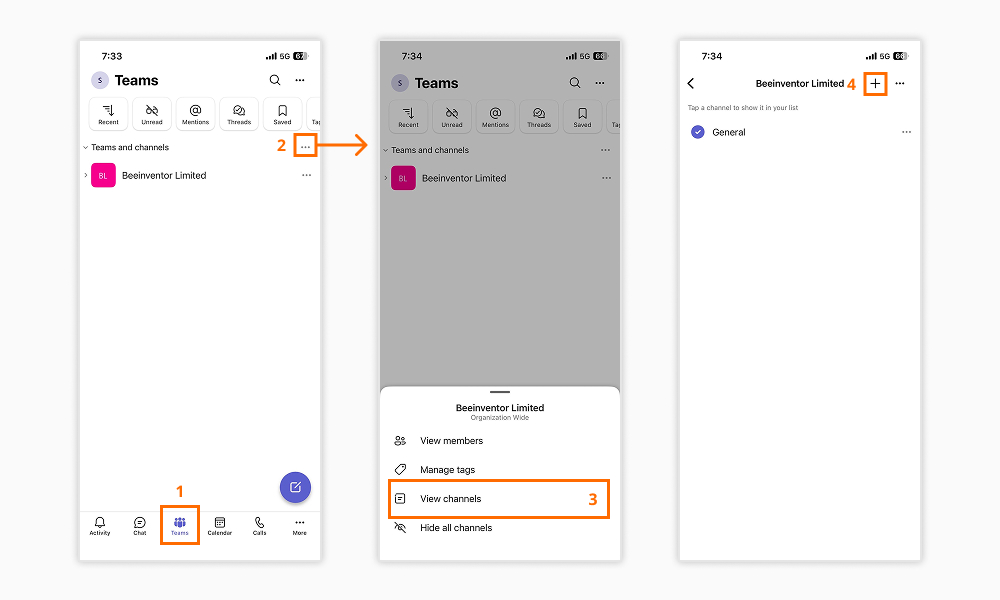
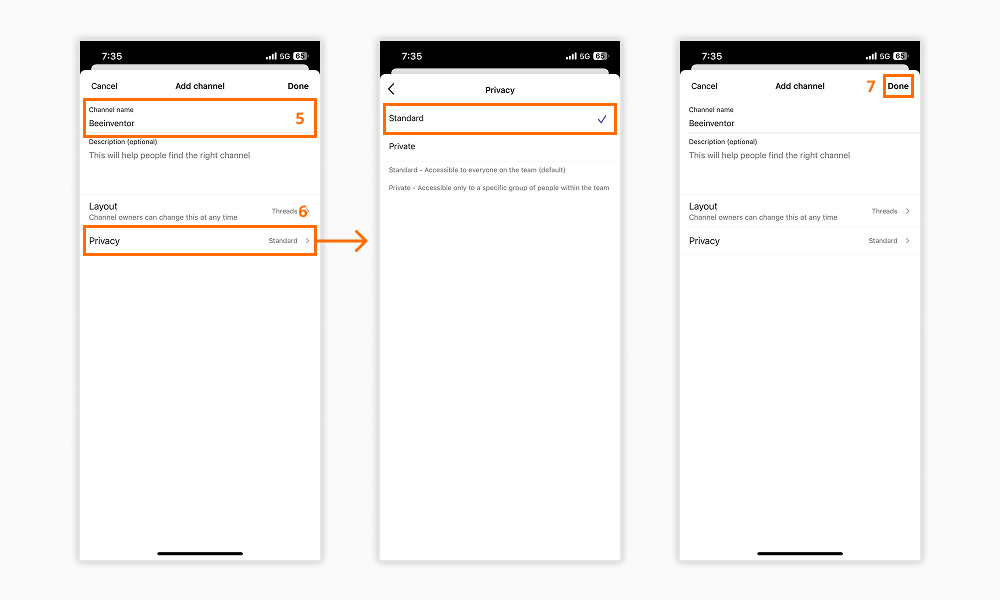
4. Enter the channel and set up the Webhook Bot
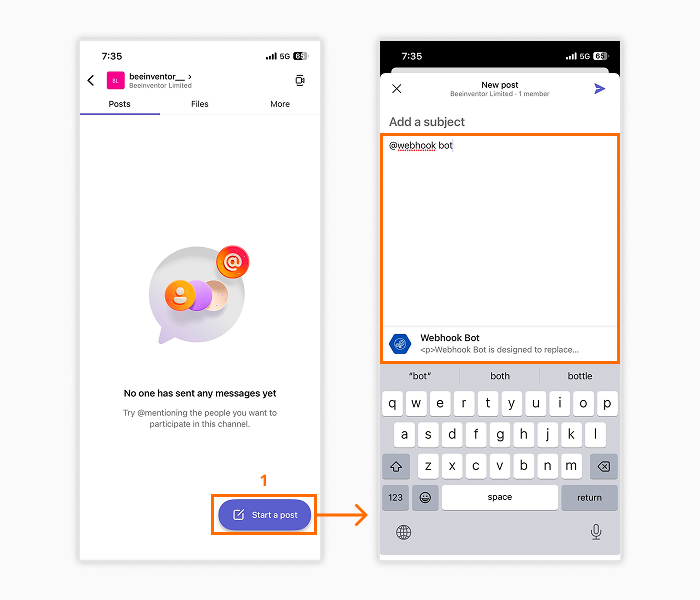
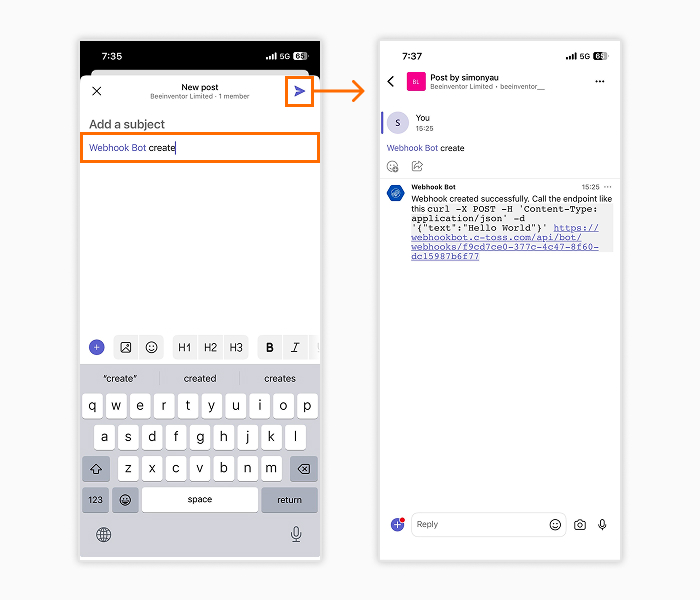
- After entering the channel, click on "New Post" below, enter "@Webhook Bot", select the connected Webhook bot below, add a space, and then type "Create".
- Confirm that the text in the input field displays "@Webhook Bot create", then press the send button. After the post is sent, the Webhook bot will dispatch a push notification code.
5. Obtain the code
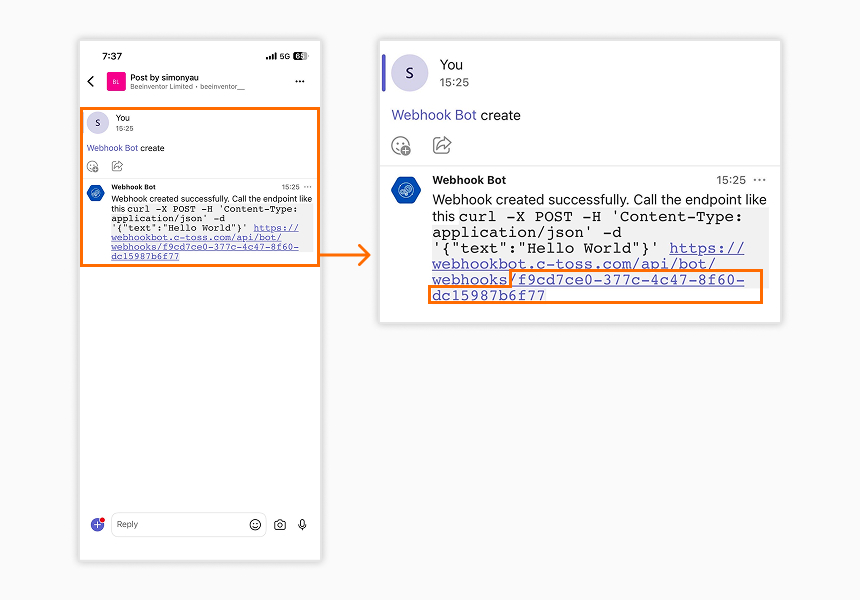
- Locate "webhooks/" in the Webhook bot's push notification code and record the alphanumeric string that follows.
6. Configure on the DasIOT platform
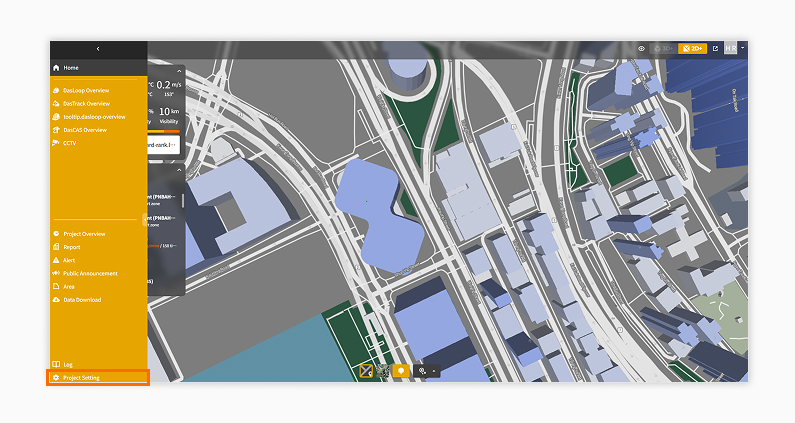
- Click on "Project Settings" at the bottom of the left sidebar toolbar.
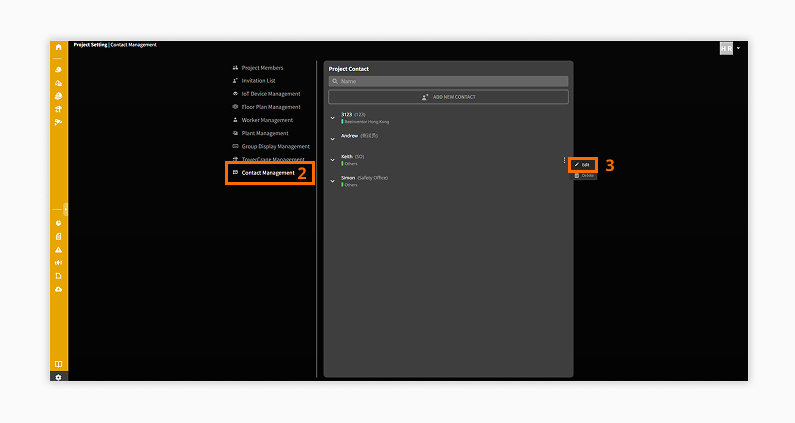
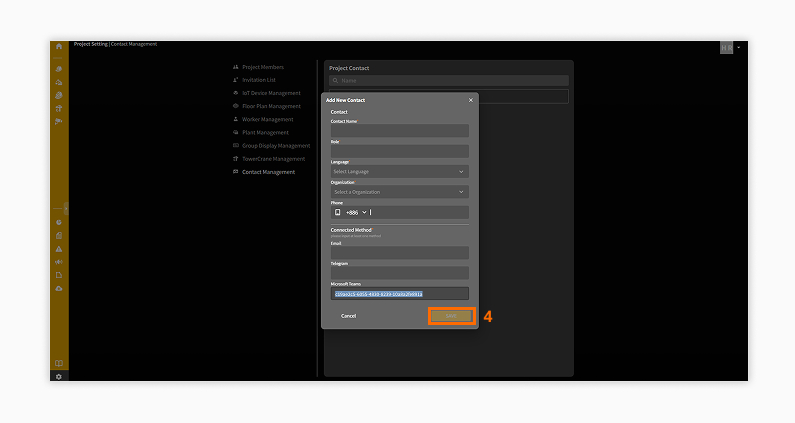
- Click on "Contact Management" in the list, and then select "Edit" from the corresponding person's more options.
- Paste the Webhook bot's code into the Microsoft Teams input field and "Save".
7. Confirm alert notifications
- Once the setup is complete, when an alert occurs on the platform, you will receive the alert notification on Teams.